~/posts $ cat 19.md · 2026-09-22 · 5 min read
Cool dog tracker for traccar
For a few years now, I've been self-hosting Traccar to track my phone. There isn't a real reason for it: it's just fun to keep a history of where I've been. It's one of those services that I kinda forget about, but now I have a dog that I want to track.
The dog
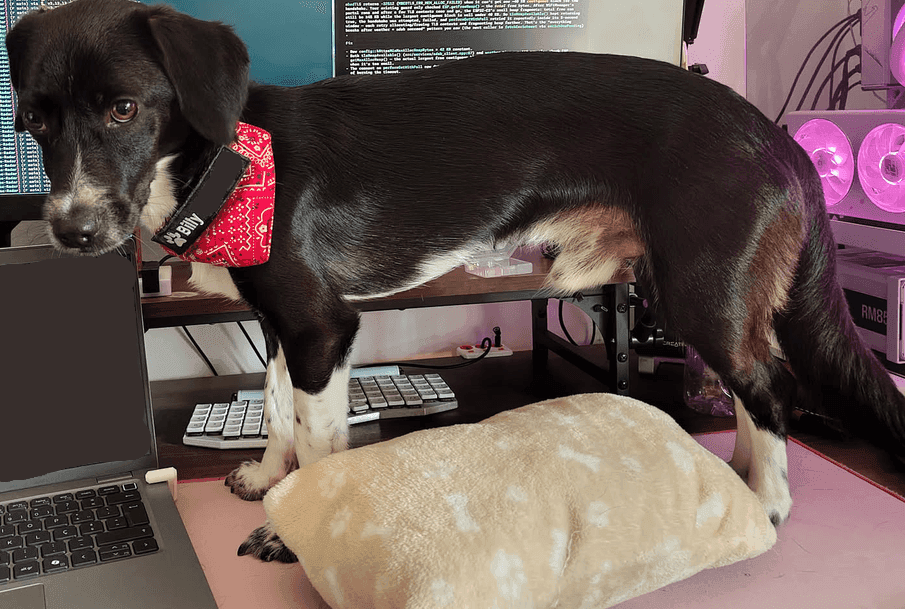
I now have a dog. I often go hiking on trails with it, so I'm scared about it escaping or getting lost. To get some peace of mind, I decided to put a GPS tracker on its collar. Since I already run Traccar, whatever I bought would ideally report to it. Absolutely no proprietary app/cloud dependency. I just want things running on my servers with an open protocol.
The device
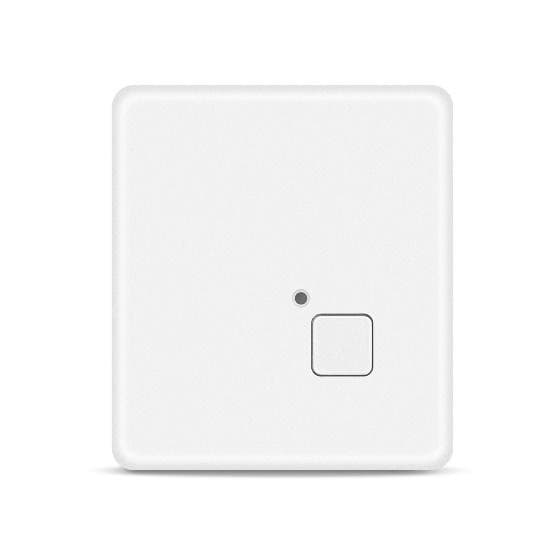
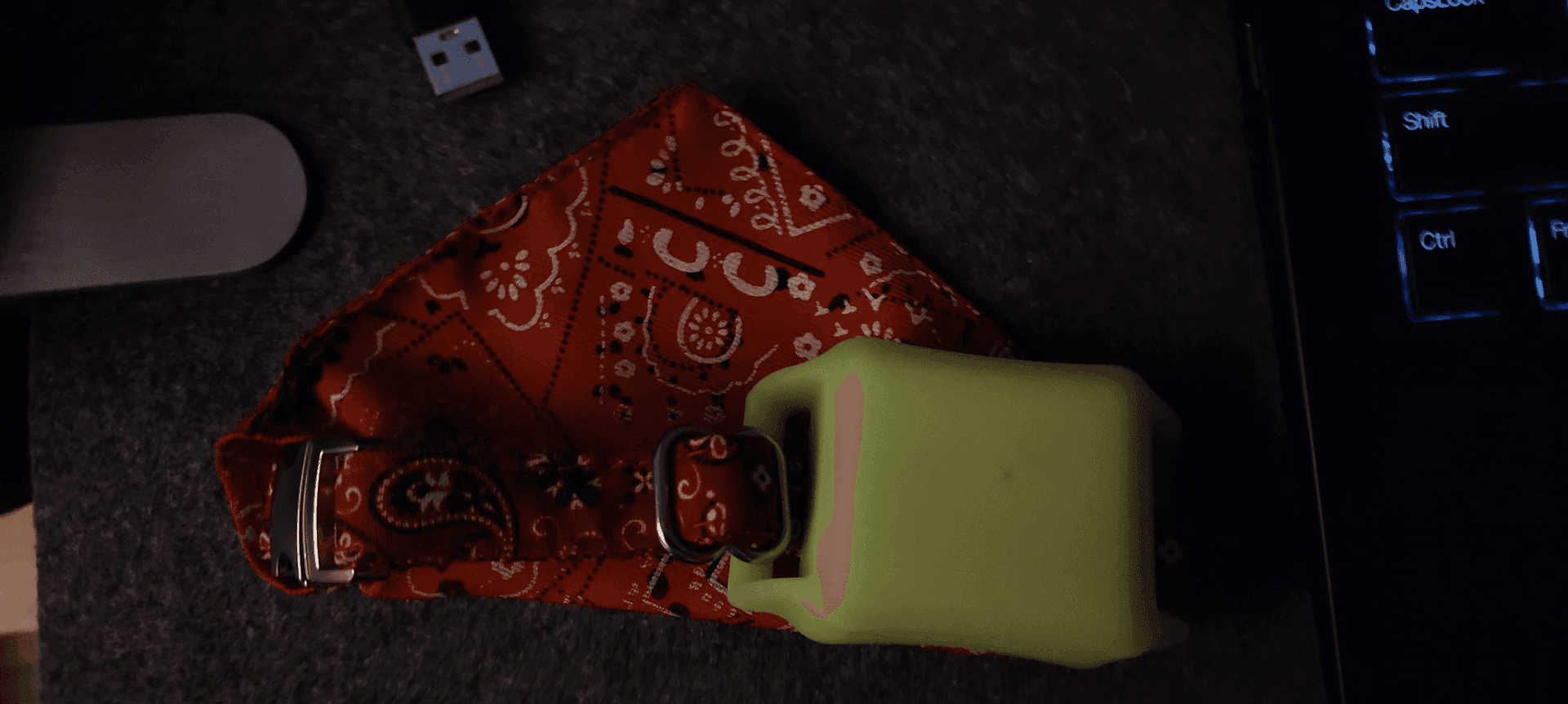
I ended up getting a Mictrack MT710. It's tiny, light, has an IP68 rating, supports LTE Cat-M1/NB-IoT (with 2G GSM fallback), and has an accelerometer. It does GPS, WiFi, and LBS positioning, and charges over a magnetic USB cable. The best part is that their protocol (tlt2h) is officially supported in Traccar. It's also easy to open (2 screws that don't mess with the IP68 rating), and the battery is just a run-of-the-mill 3.7 V 650 mAh LiPo battery that's easy to replace (JST plug). They also sell a nice silicone case to put on a dog collar.
Configuration is done through a set of plain text commands that you can send over a USB config cable, SMS, or from the web config tool. Setting it up for Traccar is basically:
- Insert a nano SIM card.
- Add the ID shown on your tracker's sticker as a new device in your Traccar instance.
- Configure the tracker:
1ETS
2803,your.apn,,
3804,your.traccar.server,5030
4QTS
BTW, the SIM cards that Mictrac sells are cheap and have been working great for me. If getting the tracker, I recommend getting the SIM card and silicone case as well.
The configuration problem
So far so good, except for the part where you actually configure the thing. The official tool for the USB route is web based: it uses WebSerial, which means Chromium on a desktop, and it's served by the vendor. It works, but it's not something I want to depend on.
The manuals didn't help much either. The command list PDF is internally inconsistent in places (e.g. MODE,1's interval is 60–600 s in one table and 10–600 s everywhere else), some commands are missing from the USB command table, and the web tool accepts at least one network mode (NWM,0,0,2) that isn't documented at all.
Rolling my own config tool
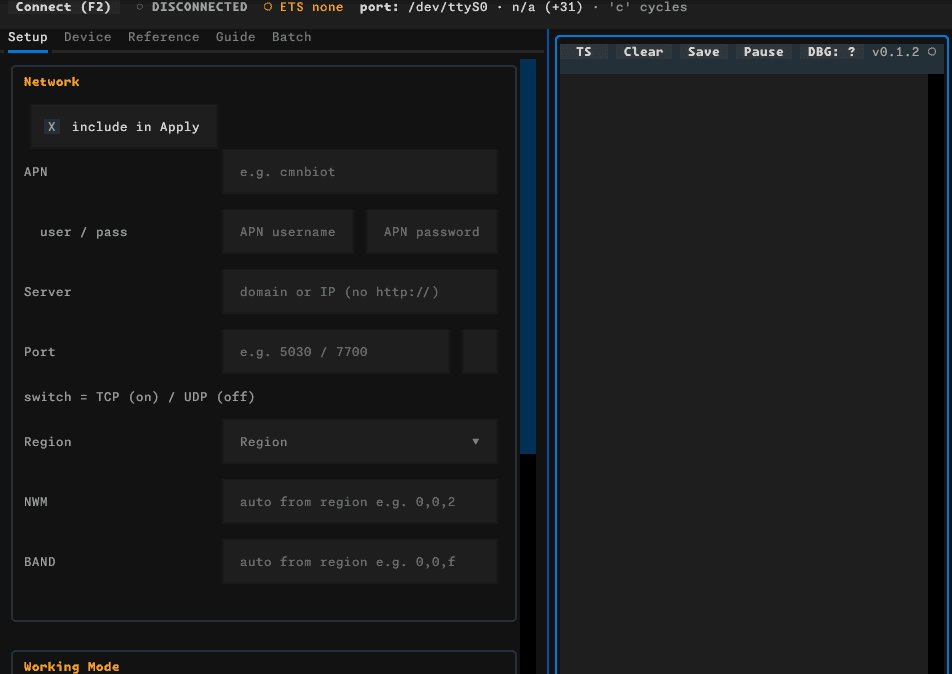
Since the web tool is essentially client-side JavaScript talking to a serial port, I grabbed its source, the command list PDF, and the user manual, and threw all of it at an AI agent to build me a local alternative. The result is mt710-config, a terminal UI for configuring and monitoring the MT710 over the USB cable:
- No Chromium needed: it's a regular terminal app that talks to the serial port directly.
- Doesn't depend on vendor servers: everything runs locally.
- Improved usability: command explanations and validation, presets, setup forms populated from the device's current config, etc.
- It merges the manuals with the rules extracted from the official web tool, so inconsistencies between the two are detected, fixed, and documented in the tool's reference tab.
Home Mode
Unfortunately, the official web config tool does not expose the most interesting working mode of this tracker: MODE 8 aka the "home mode". This is the pet tracking mode: the device sleeps while it's indoors near its home zone, and reports every 10–60 seconds once it's outdoors and moving. It also uses the accelerometer to wake up (instead of always scanning for WiFis or GPS location). We just have to configure the following:
- The MAC addresses of (up to 3) routers/WiFi access points at home.
- The GPS coordinates + a radius of home (a geofence around a coordinate).
My tool supports all the modes (the official tool just exposes 4 out of 11), including this one, and makes setting up the home zone pretty painless.
Configuring Home Mode
The tracker has two ways to know it's home: being near a known WiFi or its location being inside the geofence. With the tracker at home and connected over USB, the whole thing looks like this:
1ETS                        # open the config session
2SCAN                       # the device lists the WiFi MACs around it
3AP,,,6877248FA31A,,        # home = up to 3 MACs (12 hex chars each)
4SEARCH                     # asks the device for its current position
5GEO,38.72232,-9.13934,50   # and a geofence around it: lat,lng,radius (radius 30-300 m)
6MODE,8,10                  # home mode: report every 10 s while outdoors
Note that you can just use something like Google Maps to get your house's GPS coordinates and the cli to get your router's MAC address; no need to use the SCAN and SEARCH commands at home. Example one liner to get the MAC addresses (needs NetworkManager):
1# list: signal, MAC (MT710 format), SSID — strongest first
2nmcli -f BSSID,SIGNAL,SSID,FREQ dev wifi list --rescan yes \
3  | awk 'NR>1 {b=$1; s=$2; $1=$2=""; sub(/^ +/,""); mac=toupper(b); gsub(/:/,"",mac); print s, mac, $0}' \
4  | sort -rn
A few quirks worth knowing:
APandGEOonly stage the change: nothing is stored until a save happens. SinceMODEsaves and reboots the device by itself, sending it last persists the whole batch. This is exactly the sequence my tool's setup form generates for you.- Those two empty fields before the MACs in
AP,,,<mac>,<mac2>,<mac3>are reserved placeholders that must stay empty. The manuals don't mention them: it's the kind of thing you only find out by reading the official web tool's source. - The tracker can only see 2.4 GHz APs. Skip 5 GHz WiFi access points' MAC addresses.
- For some reason, my tracker can only see WiFi access points in channel 1, 6, and 11. No idea why, but I assume it's an hardware limitation.
After the reboot, RCONF confirms the stored home zone (AP:/GEO: lines), and the tracker goes back to napping whenever the dog does 🐕️.
I have configured the tracker to post location every 10 seconds while outdoors. This gives me a pretty detailed path of our walks/hiking trails. With at least 3 walks a day (>= 1 hour total), the tracker's battery lasts at least a week. I set up Traccar to send me a notification when the battery is low, but I've been charging it weekly just to make sure it's ok. I just lay down the collar on the magnetic charger overnight, whenever I remember to do so.
Conclusion
The dog now has a tracker on its collar, Traccar has a new device to draw maps with, and I don't have to trust anyone's cloud or browser support for any of it. If you have an MT710 (or a dog), give mt710-config a try.
Stay safe :P